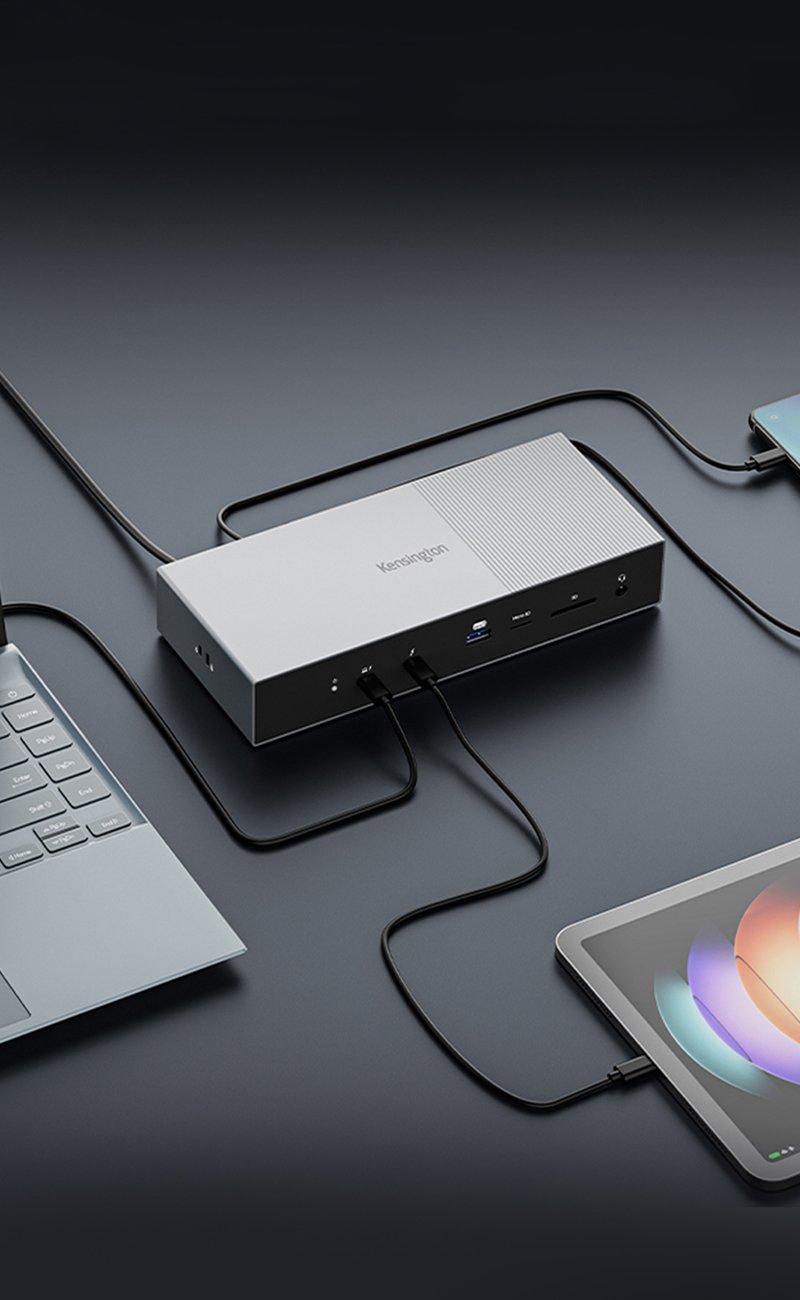


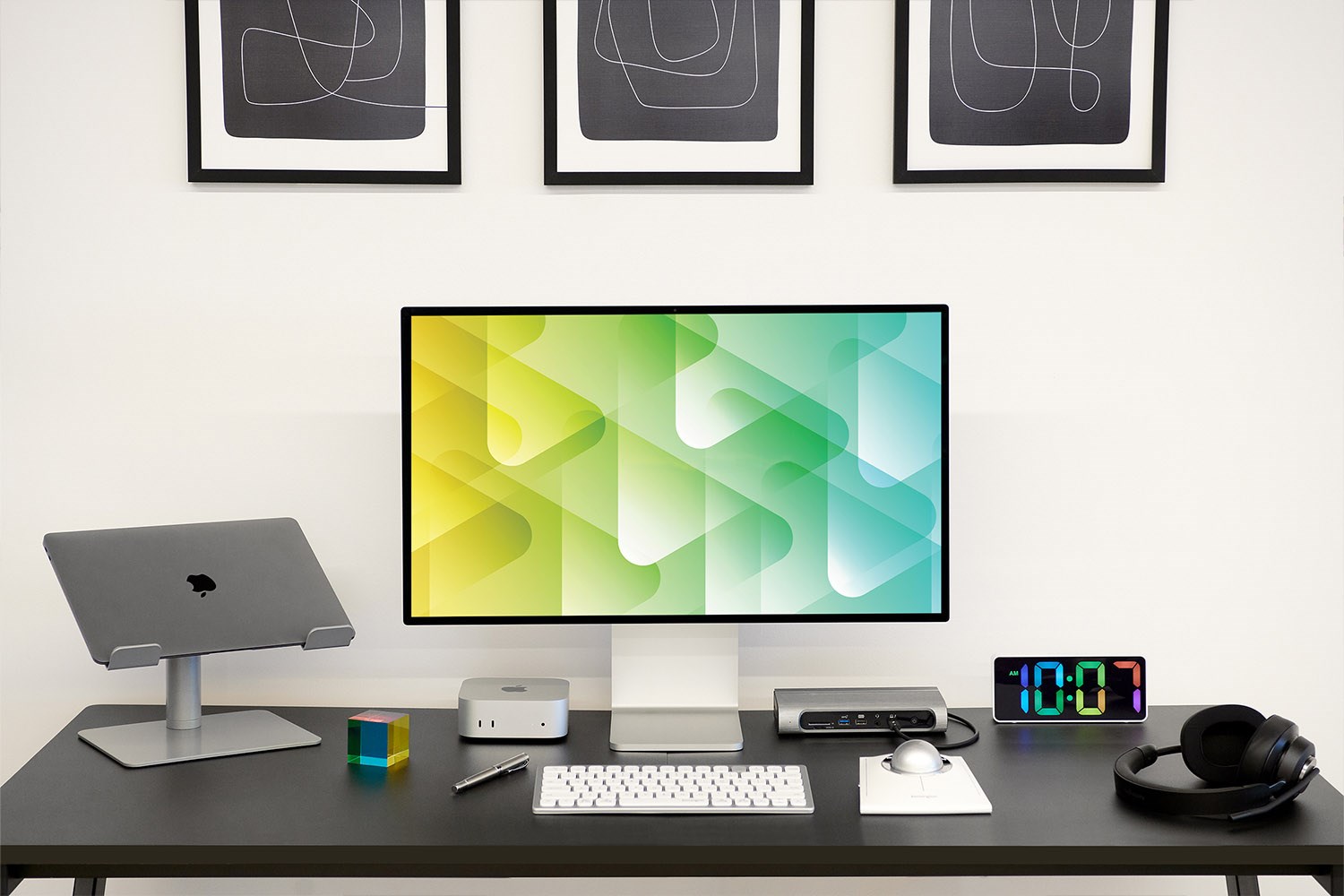
MacBooks powered by Apple silicon—M1 through M4—offer exceptional performance in a compact design.
However, to unlock their full desktop potential, users need expanded connectivity, display flexibility, and the right peripherals to support demanding workflows.
The right docking station makes it possible to build a professional, clutter-free workspace that adapts to your MacBook's capabilities.
If you are a loyal Apple user looking to grow your workspace, some questions that may arise are:
Which docks support dual or triple monitors on an M1 or M2 Mac?
What docking stations are optimized for M3 and M4 Macs?
Which Kensington docks work best with macOS?
How can I future-proof my workspace setup with Thunderbolt™ 5?
Kensington offers tested and certified docking stations built to support the exact configurations Mac users need—whether it's multiple monitors, faster data transfer, or higher power delivery.
This guide walks through the best options based on chipset type, display goals, and performance requirements.
You can also explore our whole variety of Kensington docking stations and pick the right one for you.
Docks for M1, M2, and M3 Base Chipsets
MacBooks with M1 and M2 base chipsets support only one external monitor natively. M3 base chipset supports up to two external monitors, but only when the laptop lid is closed.
To expand display options beyond this limit, Kensington's DisplayLink®-enabled docks are the best solution.
SD5900T EQ Thunderbolt™ 4 Dock with DisplayLink® combines the speed of Thunderbolt™ with DisplayLink®'s multi-display capability. It supports up to three external monitors, one 6K and two 4K while maintaining 40Gbps transfer speeds. With broad macOS compatibility, 16 built-in ports, and DisplayLink® driver support, it's ideal for creatives and hybrid professionals who need more screen space without sacrificing comfort.
SD4790-MAC EQ USB-C® Triple 4K Docking Station for Mac is optimized specifically for macOS. It connects via USB-C® and supports up to three 4K displays at 10Gbps.
SD4760P USB-C® Triple Display Docking Station offers great value for multitaskers. Supports up to one 4K monitor at 30Hz and two 1080p monitors at 60Hz, plus 100W power delivery, it's well-suited for home and office users who want to extend displays without high-bandwidth requirements.
Note: All DisplayLink® docks require DisplayLink® driver installation on macOS.
Thunderbolt™ 4 Docks for M1–M4 Pro, Max, and M4 Base Chipsets
MacBooks with Pro and Max chipsets—and now the M4 base—support multiple monitors natively, including two external displays on Pro models and up to four on Max models.
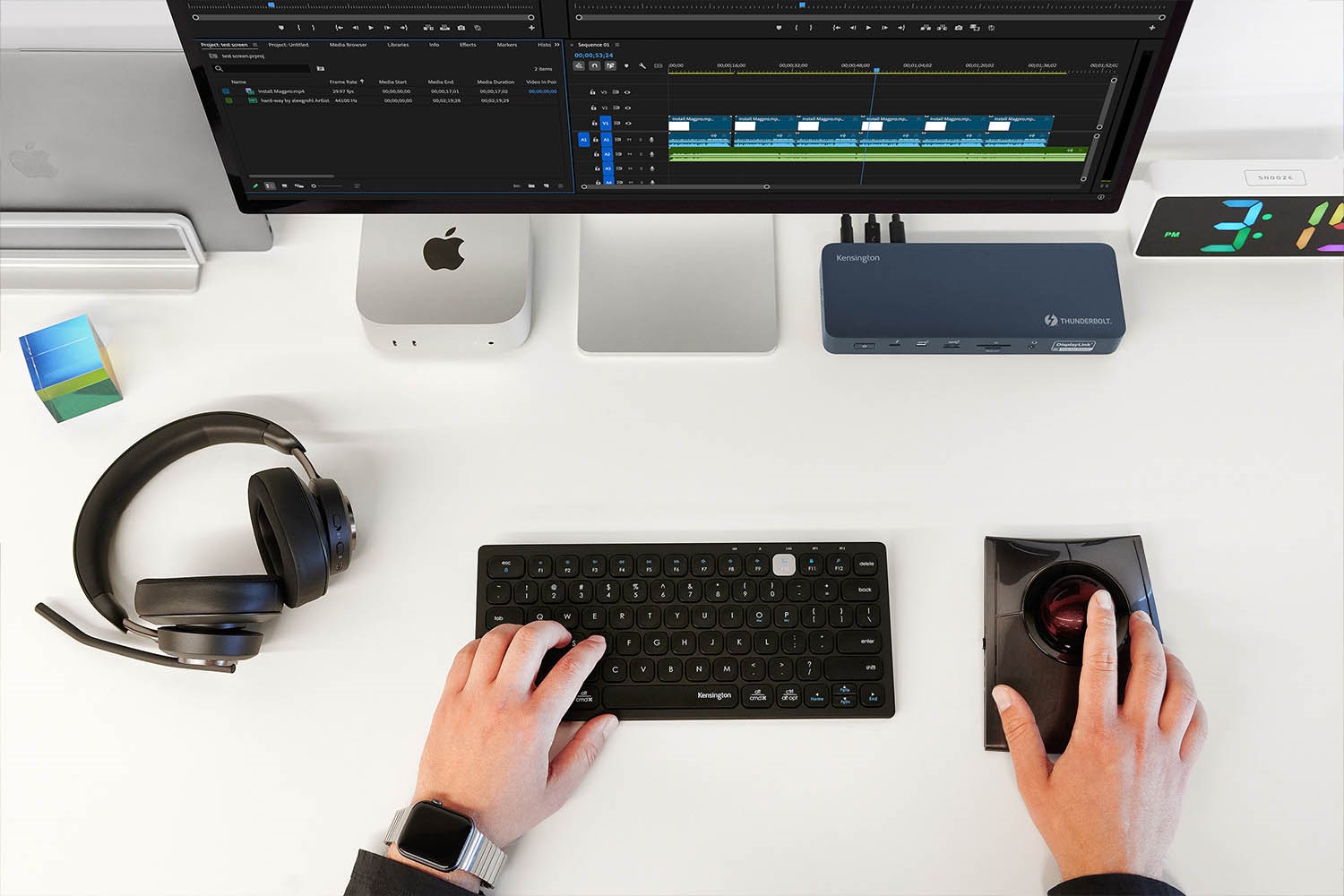
Thunderbolt™ 4 docks take full advantage of this by providing high bandwidth, multiple high-resolution ports, and no need for third-party drivers.
SD5700T Thunderbolt™ 4 Dock delivers 90W of power and supports one 8K display and dual 4K, both at 60Hz, for Thunderbolt™ 4-enabled host devices. If you have an M4 base chipset, it also supports two 6K displays at 60Hz. It's ideal for editors, designers, and developers using high-resolution monitors in professional workflows.
SD5780T Thunderbolt™ 4 Dock increases the power delivery to 96W and maintains the same 40Gbps speed with single 8K or dual 4K display support. It's a strong option for those using the latest MacBook Pro models or multitasking with heavier apps.
SD5760T Thunderbolt™ 4 Dock offers the same 96W power delivery as the SD5780T but adds an expanded, 13-in-1 port selection for users who need to connect multiple peripherals while driving single 8K or dual 4K displays at 60Hz.
SD5800T Thunderbolt™ 4 Docking Station steps it up for enterprise users. With up to 100W power delivery and robust compatibility through 16 ports, it's suited to shared desks and IT-managed environments needing stability and plug-and-play reliability.
Thunderbolt™ 5 Dock for M4 Pro and M4 Max
Apple's M4 Pro and Max chipsets unlock Thunderbolt™ 5's incredible capabilities, including up to 120Gbps bandwidth and support for demanding 8K workflows.
The best part? Kensington's next-gen dock is designed to meet those demands.
SD5000T5 EQ Thunderbolt™ 5 Triple 4K Docking Station supports up to two external 6K displays or a single 8K for MacBooks. With up to 140W of power delivery and next-gen bandwidth, it's built for professionals in 3D modeling, video production, or any data-intensive field.
Consider that if your device has an M4 Max chipset, you can maximize display capabilities by connecting up to two 6K displays through the dock and up to two additional 6K displays directly to your MacBook.
Quick Chipset-to-Dock Matching Guide
| Mac Chipset | Native Display Support | Recommended Dock Type |
|---|---|---|
| M1 / M2 Base | 1 external display | DisplayLink® docks like the SD5900T |
| M3 Base | 1–2 (with lid closed) | DisplayLink® or Thunderbolt™ 4 |
| M4 Base | 2 external displays | Thunderbolt™ 4 or 5 |
| M1–M4 Pro | 2 external displays | Thunderbolt™ 4 or 5 |
| M1–M4 Max | Up to 4 external displays | Thunderbolt™ 4 or 5 |
Keep in mind that base chipsets require DisplayLink® docks to go beyond their native single/display limits, while Pro and Max models benefit most from Thunderbolt™ 4 and 5's native bandwidth.
Choosing the Right Dock for Your Mac Workflow
Ask yourself:
How many external monitors do I want to connect?
Is my Mac running a base, Pro, or Max chipset?
Do I need Thunderbolt™ speed, or will USB-C® with DisplayLink® suffice?
What power delivery is required for my Mac model?
Do I want a dock that will support future chipsets like M4 Max or Thunderbolt™ 5?
If you're not sure which dock is right, Kensington's product finder tool can match you to your ideal solution based on your MacBook and workflow.
FAQ About Docking Stations for Mac
Can I connect two monitors to my M1 or M2 MacBook Air?
Yes, using a DisplayLink®-enabled dock like the SD5900T allows multiple displays even with base chipsets.
Do I need to install software for a Thunderbolt™ dock?
No. Thunderbolt™ 4 and 5 docks are plug-and-play with macOS for dual monitor support on Pro, Max, and M4 base models. DisplayLink® docks require driver installation.
Can Thunderbolt™ 5 docks work with older Macs?
Yes, they are backward compatible, but keep in mind you won't get full Thunderbolt™ 5 speed or display features unless your Mac supports Thunderbolt™ 5.
Which dock should I use if I need the most ports and power?
The SD5800T or SD5000T5 are best for power users who need advanced performance, display, and charging capabilities.
Designed for macOS and Built for Productivity
Whether you're a creative, a developer, or a remote worker, Kensington offers a dock to match your Mac's chipset and maximize your workspace potential.
With solutions tailored for every M-series chipset, from M1 to M4 Max, you can trust Kensington to deliver reliable connectivity, high performance, and a cleaner, more productive desk setup.