

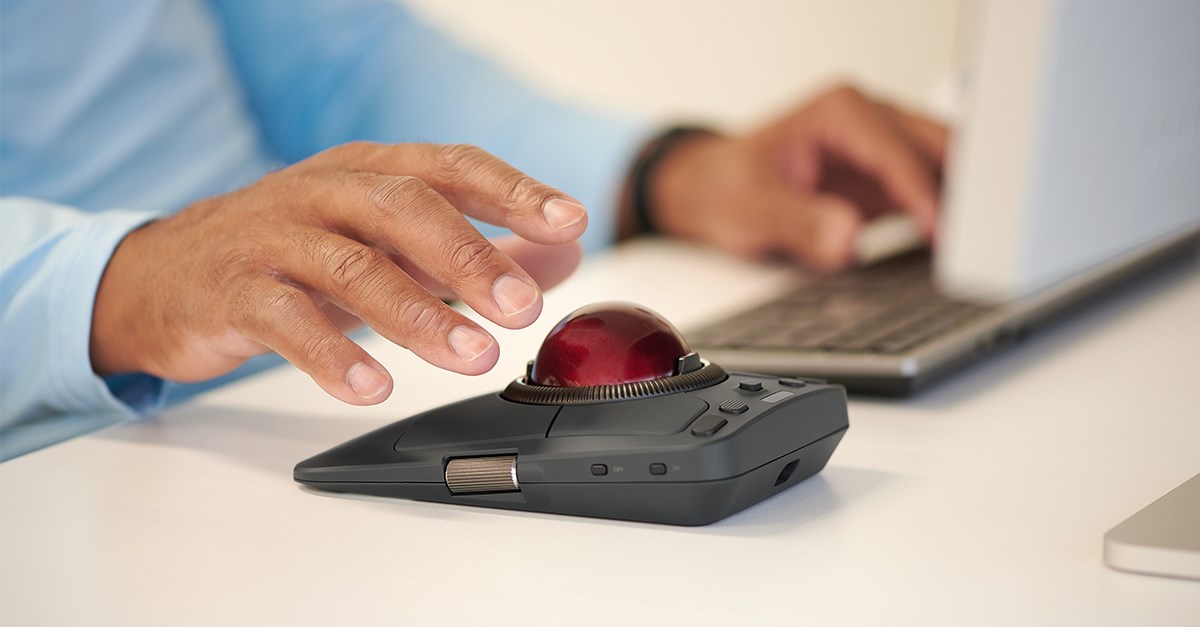
If you’ve experienced cursor movement issues or noticed an insensitive area on your Kensington ExpertMouse™ TB800 EQ Trackball, we have great news! A new firmware update is now available to improve your experience and address an improvement to the previously reported sensor gap issue.
What’s New in This Firmware Update?
- Enhanced Cursor Stability: The firmware fine-tunes cursor responsiveness, especially along the X-axis, for smoother and more accurate movement.
- Reduced Insensitive Area: The “sensor gap” has been significantly minimized—from the original blue-framed area to a much smaller red-framed area.
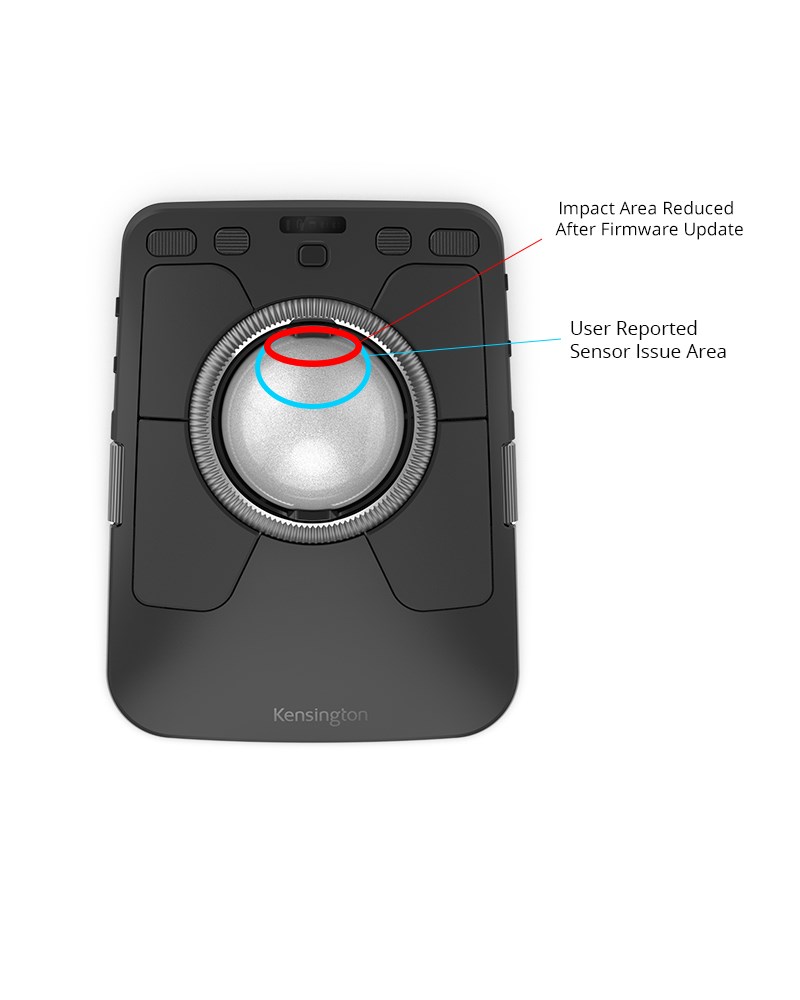
- Improved User Experience: While a small insensitive area remains along the top edge of the ball, this is outside the intended usage we recommend and should not affect typical operation.
- To address the circle-drawing issue, increasing the reporting rate to a higher level—such as 750 Hz or 1 kHz—can significantly improve performance. This enhancement is available when using a 2.4 GHz dongle or a wired connection. While drawing a perfect circle may remain challenging at a 133 Hz reporting rate, these higher-rate options offer a practical and effective workaround, delivering noticeably improved circle drawing while a more refined solution continues to be explored.
- One-Click Update for Windows: Updating your device is now easier than ever with a simple one-click update tool for Windows users available here.
- macOS Update: The macOS update and steps to install are available here.
Why Was There an Insensitive Area?
The small insensitive zone near the top edge is due to the trackball’s sensor positioning, the zone is placed intentionally along the top of the ball near the ball retention structure, which can alter finger movement and occasionally trigger the scroll ring. This behavior is normal and does not impact the usage while operating the ball from the top.
How to Update Your Firmware
Updating your Kensington ExpertMouse™ TB800 EQ Trackball is quick and easy:
- Connect your TB800 via the 2.4 GHz dongle. Follow the SOP that is included in each operating system download folder to download the firmware update package. Extract the contents if necessary.
- Launch the update tool.
- Click the update button. The process will begin automatically.
That’s it! Your device will now run the latest firmware for improved performance.
We’d Like Your Feedback:
We want to make sure the firmware is an improvement for you. We’ve designed a brief survey to share your results. If you continue to notice problems after updating, our Kensington Support team is here to help.