-
1. What makes the Expert Mouse™ TB800 EQ Trackball different from a traditional mouse or other trackballs?
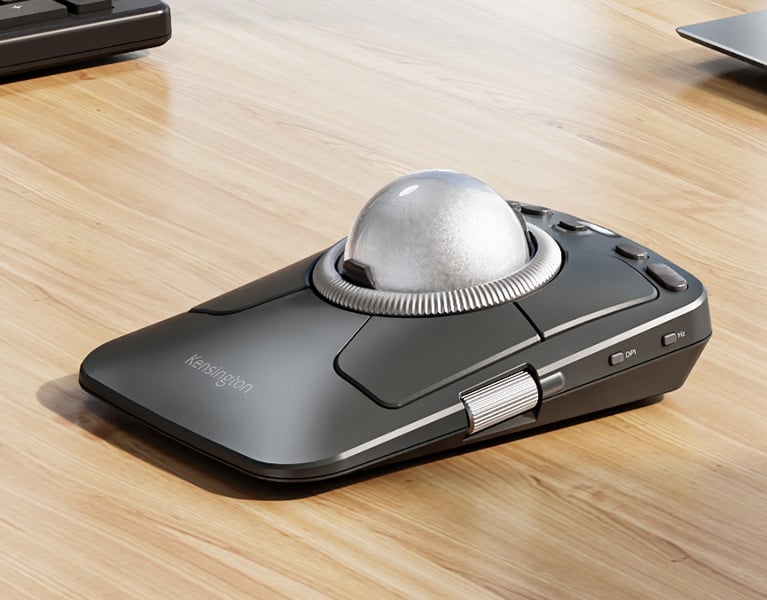
The TB800 is an award-winning trackball that features a large 55mm ball for ultra-precise tracking and advanced customization options, including an adjustable scroll ring and two programmable side scrolls. It is designed for creative professionals who need precision and comfort.
-
2. How do I connect the Expert Mouse™ TB800 EQ Trackball to my devices?
You can connect your TB800 to up to four devices using two Bluetooth® channels, one wireless 2.4GHz dongle with 128-bit AES encryption, and one wired USB-C® connection. Switching between devices is instant and does not require re-pairing.
TB800 Instruction Guide 
-
3. Is the TB800 compatible with both Windows and macOS?
Yes, the TB800 supports Windows 10 or later (32-bit/64-bit), Windows 11 (64-bit only), and macOS 13 or later.
-
4. Is the TB800 EQ Trackball suitable for left-handed users?
Yes, the Expert Mouse™ TB800 EQ Trackball offers an ambidextrous design that supports all-day comfort for both right- and left-handed users with average to larger-sized hands.
-
5. What is the polling rate and why does it matter?
When connected via the 2.4GHz receiver or wired, the polling rate can be set to 250Hz, 500Hz, 750Hz, or 1000Hz. When connected via Bluetooth, the polling rate is fixed at 133Hz. Polling rate refers to how often the device reports its position to the computer. A higher polling rate results in smoother and more responsive cursor movement.
-
6. Does the TB800 EQ Trackball come with any bundled software?
Yes, the Expert Mouse™ TB800 EQ Trackball includes access to the extended version of AVID Pro Tools software for professional audio production. Registration is required.
-
7. What warranty is offered with the TB800 EQ Trackball?
The TB800 is backed by Kensington’s professional support and a 3-year limited warranty.
-
8. How do I reset the TB800 EQ Trackball if it stops responding?
If your TB800 stops responding, disconnect the device from all connections (USB-C®, Bluetooth®, dongle), wait 10 seconds, then reconnect. If issues persist, try restarting your computer and re-pairing the device.
-
9. What should I do if the trackball cursor is not moving smoothly or is skipping?
Remove the ball from the socket using the eject button on the bottom of the trackball frame.
Clean the ball and trackball frame with a damp cloth or rubbing alcohol and allow them to dry.
Lubricate the ball with a non-acidic lotion. We recommend using an oil-based lotion such as Vaseline for the best result. Evenly rub a pea-sized amount of lotion into the palms of your hands and roll the ball across the lotion on your hands until the ball is well lubricated.
Gently push the ball back into the socket. If the ball feels a little sticky, simply roll it around in the socket until it moves freely.
-
10. My device won’t connect via Bluetooth®. What steps should I take?
Make sure Bluetooth® is enabled on your computer. Press and hold the Channel Selection Button for three seconds to enter pairing mode (flashing blue LED). Select the TB800 EQ Trackball from your device’s Bluetooth® menu. If connection fails, restart both devices and try again. If it still doesn't work, forget/remove TB800 from your Bluetooth menu then repair.
-
11. How long does the TB800 battery last and how do I charge it?
The 900mah rechargeable battery supports up to 4 months of productivity on a single charge. You can charge it using the included USB-C® cable, which also allows for wired use while charging.
-
12. The TB800 battery LED is flashing red. What does this mean?
A flashing red battery LED indicates less than 5% battery life remaining. Connect the USB-C® cable to charge the device. A pulsing red light means charging is in progress. A solid green light means your TB800 is fully charged.
-
13. Can I use the TB800 EQ Trackball while it’s charging?
Yes, you can use the TB800 in wired mode while charging via the USB-C® cable.
-
14. What should I do if the scroll ring or side scrolls aren’t working?
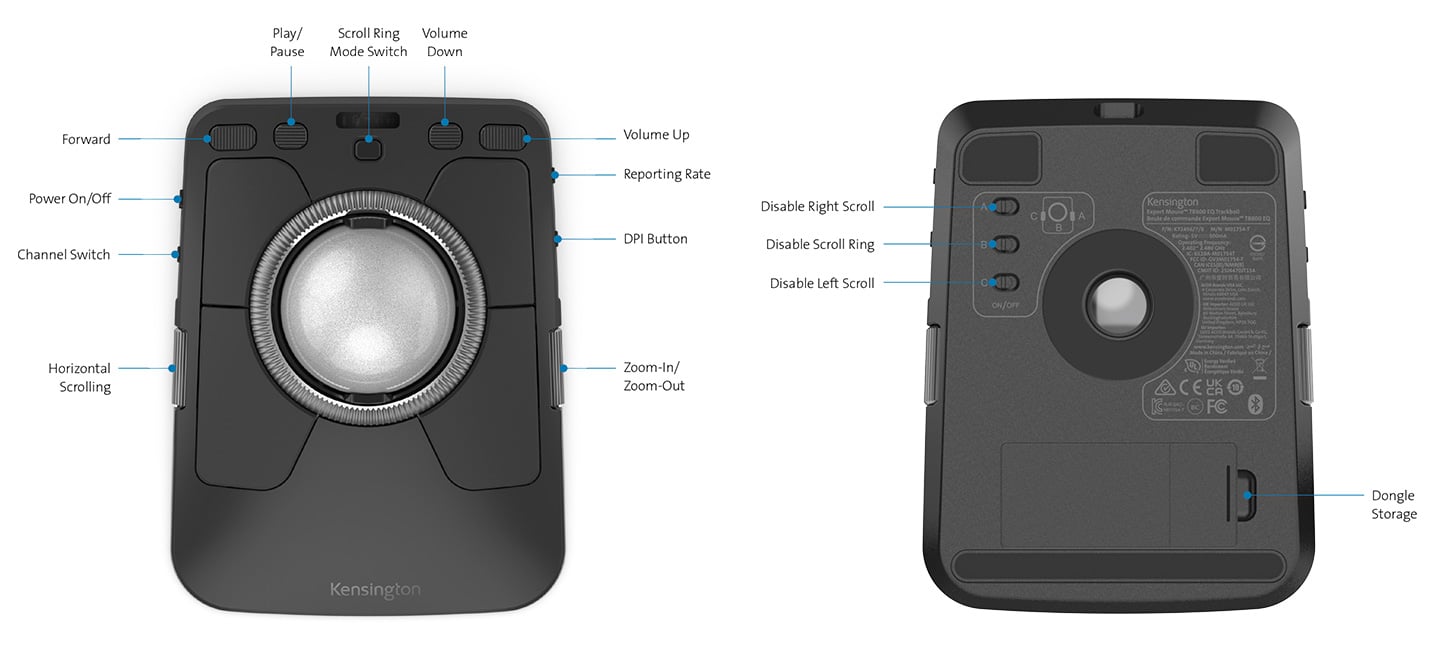
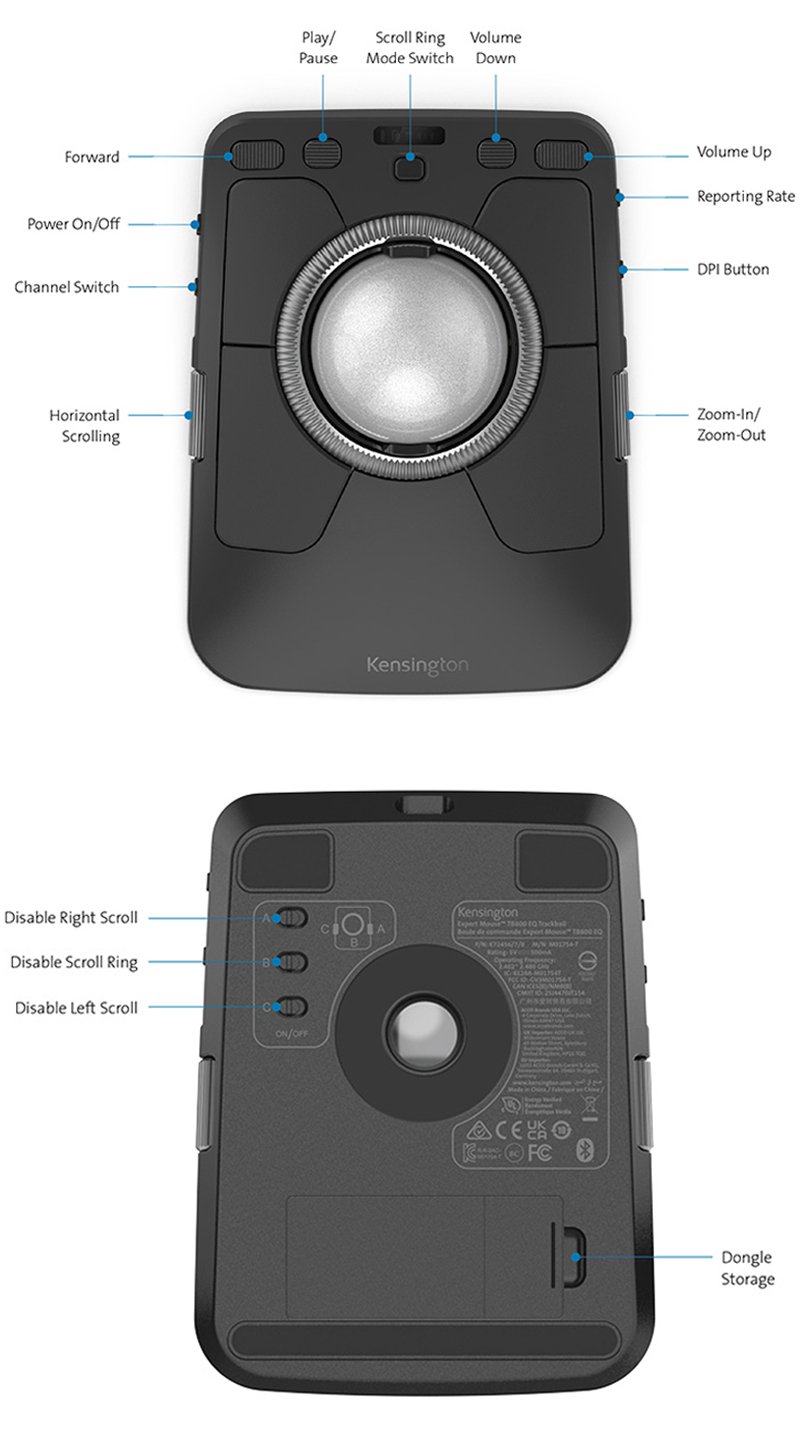
If the scroll ring or side scroll don’t work, check the bottom of the TB800 trackball to see whether the switch for the scroll ring and/or side rollers is set to the disabled position.
-
15. My computer does not recognize the wireless dongle. What should I do?
Ensure the dongle is fully inserted into a USB port. Try a different port if necessary. If still not recognized, restart your computer and check for driver updates.
-
16. How do I customize button functions?
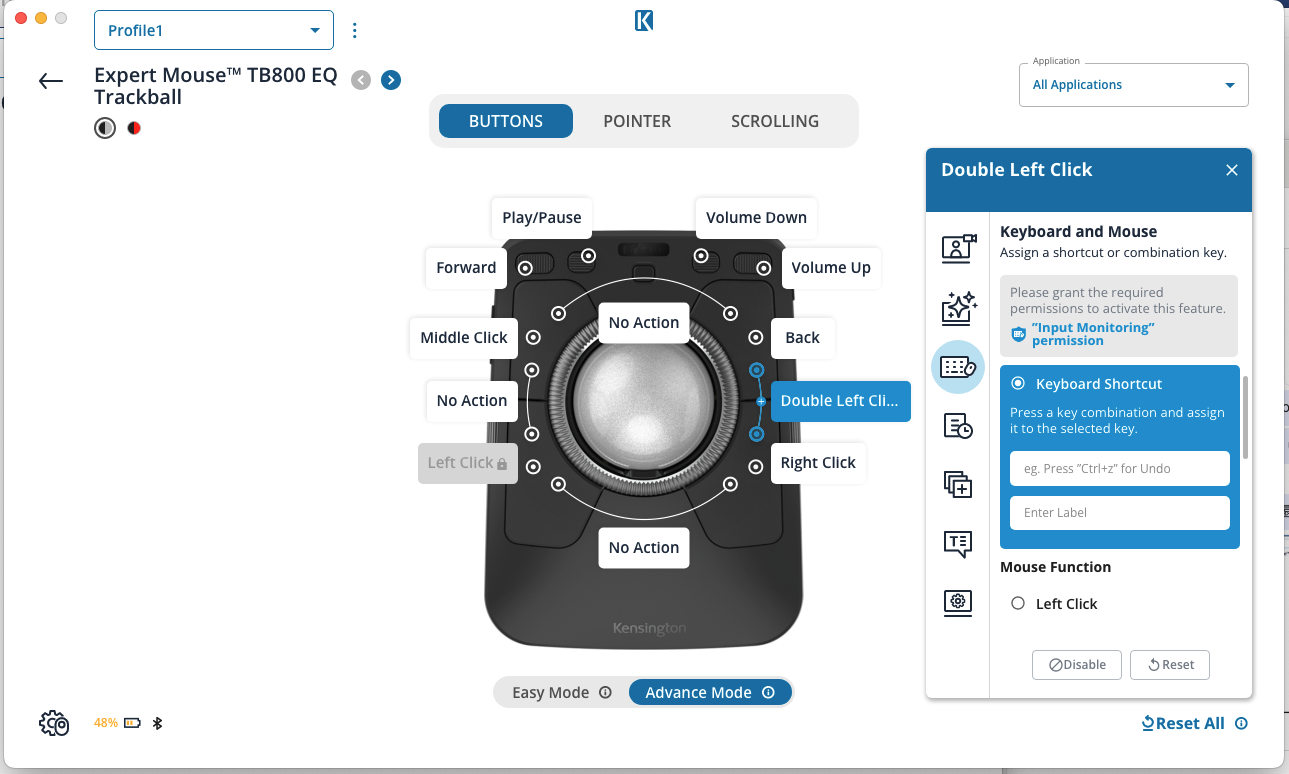
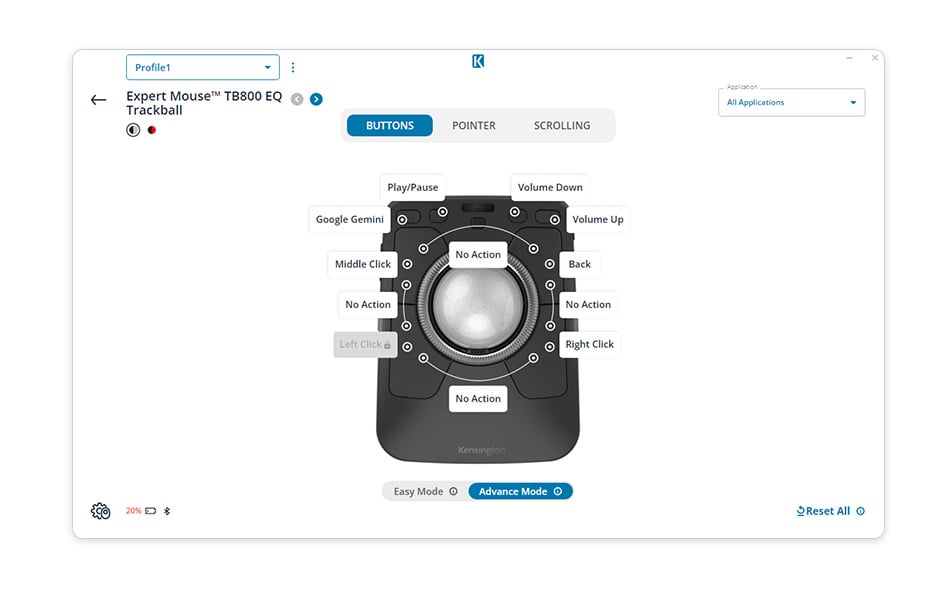
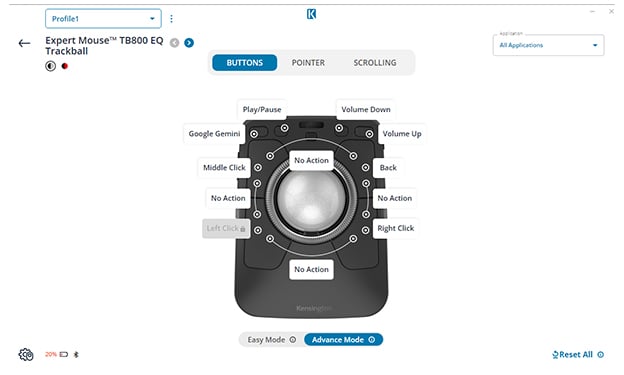
Download and install the free Kensington trackball software from www.kensington.com/software/hub. Follow the on-screen instructions to customize your TB800. Use it to assign up to 16 sets of programmable button functions to suit your workflow.
-
17. What operating systems does Kensington Konnect support?
Kensington Konnect supports Windows 10 / 11 and macOS 13 or later.
-
18. I noticed new functions on the Expert Mouse TB800, such as scroll-ring sensitivity, side-scroll, and report-rate customization. Are these features also available on other models like the Expert Mouse Wired/Wireless or SlimBlade Pro?
Currently, these new functions are only supported on the Expert Mouse TB800. Some features also require specific hardware and firmware support, so they may not be available on earlier models.
-
19. I noticed new functions on the Expert Mouse TB800, such as scroll-ring sensitivity, side-scroll, and report-rate customization. Are these features also available on other models like the Expert Mouse Wired/Wireless or SlimBlade Pro?
The shortcut keys for Zoom In/Out vary by application, so this function may not be supported in all programs. If you know the shortcut keys your application uses for zooming or other actions, you can manually assign them under Keyboard and Mouse → Keyboard Shortcut in the Kensington Konnect software.
-
20. I have a Kensington keyboard that supports customizable buttons. Can I use Kensington Konnect to configure it?
Currently, keyboard customization requires a separate application — Kensington Konnect for Keyboard. Beginning in Q1–Q2 2026, customization for keyboards, mice, and trackballs will be integrated into a single unified platform.
-
21. Can I view my product in the same color I purchased within Kensington Konnect?
Yes. However, the software cannot automatically detect your device’s color. You’ll need to manually select the correct color for your device within the app.
-
22. How can I share feedback or report an issue with the software?
Go to Application Settings in the upper-right corner of the Konnect home page. Under Support → Feedback, select Form, describe the issue, and attach your log file (Enable Debug Mode → Export Log File). Then submit the completed form to Kensington.
-
23. My device isn’t detected after installing Konnect, or my customization settings don’t work — especially on macOS.
Make sure you have granted all required permissions during installation (Accessibility and Input Monitoring). In most cases, detection or functionality issues occur because the necessary permissions were not granted during setup.
-
24. When I change the scroll speed in Kensington Konnect, why doesn’t it change the number of lines my computer scrolls?
Kensington Konnect controls the scrolling speed (how fast the scroll ring responds), but it does not change the number of lines your operating system scrolls per notch or movement.
Windows:
Settings → Bluetooth & devices → Mouse → "Lines to scroll per notch"
macOS:
System Settings → Mouse → "Scrolling speed" (macOS controls this globally and does not allow per-device line-count adjustment)
-
25. Does the TB800’s scroll ring override OS scrolling behavior?
No. The TB800 scroll ring works with the OS’s native scrolling logic. Konnect can fine-tune responsiveness, acceleration, and feel, but OS-level scroll behavior still applies, including smooth scrolling, momentum, and line count.
-
26. I'm a macOS user and want to assign a button with a function involving modifier keys (Command, Option, Control, or Shift) using Kensington Konnect, but it doesn't work. What should I do?
Due to macOS system requirements, users who wish to assign functions involving modifier keys in Kensington Konnect must first grant Input Monitoring Permission to the app.
Please follow the on-screen instructions to enable Input Monitoring Permission for Kensington Konnect.
After completing the setup, quit and reopen the application for the permission to take effect.
Once the permission is granted and the app is relaunched, you should be able to assign and use the modifier-key functions as intended.