

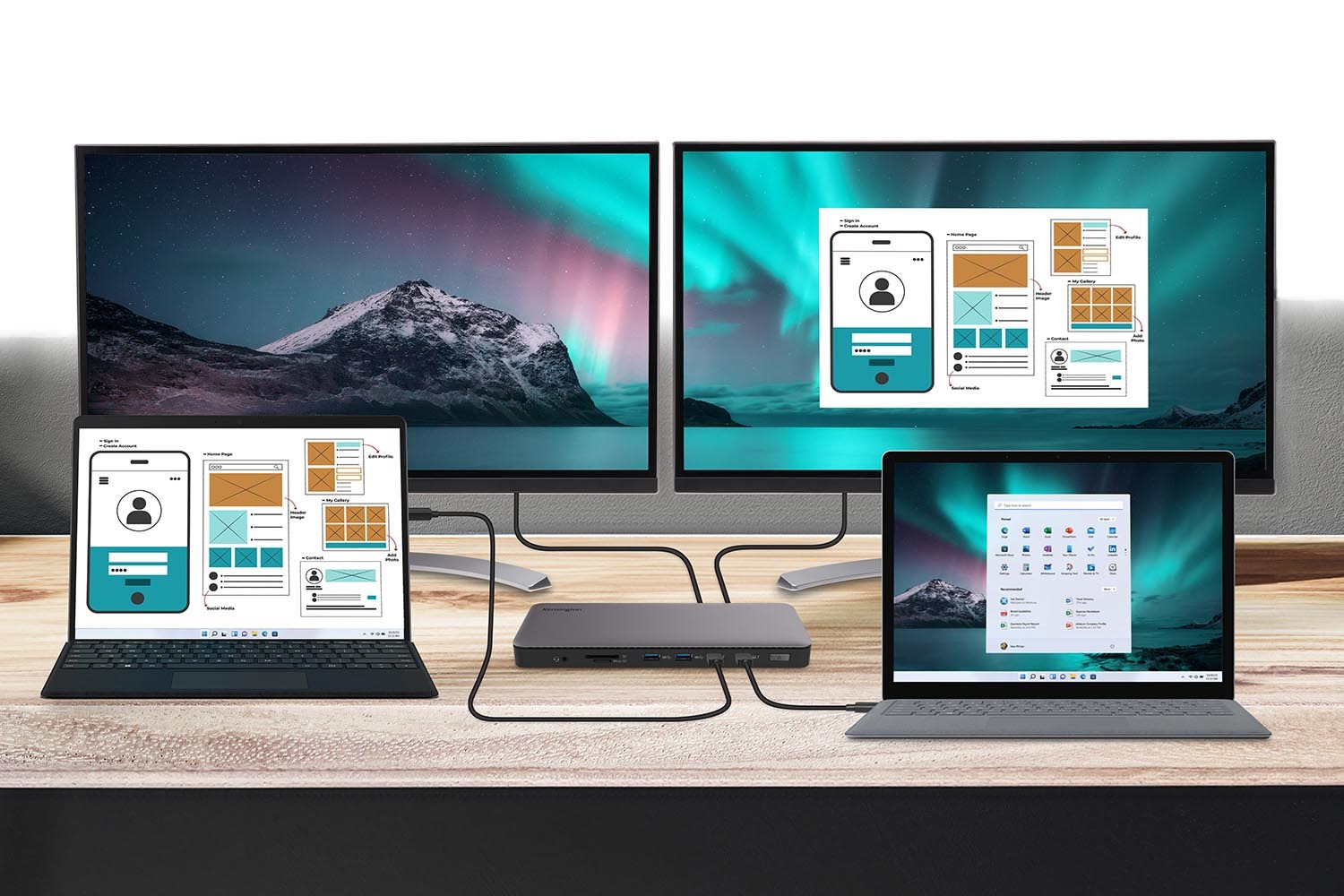
Thunderbolt™ Share—a recent Intel-certified software solution—enables two Windows PCs to connect directly using a single Thunderbolt™ cable.
The result? High-speed file transfers, shared displays, and device control without relying on a network, cloud service, or external storage.
For creatives, hybrid professionals, business owners, and IT teams, this blog covers key concerns such as:
- What is Thunderbolt™ Share and how does it work?
- How is Thunderbolt™ Share different from traditional file sharing?
- Can I use Thunderbolt™ Share with a docking station?
- What do I need to run Thunderbolt™ Share?
- Who benefits most from Thunderbolt™ Share?
This guide explains how Thunderbolt™ Share works, its core benefits, and how Kensington supports future-ready docking solutions.
What Is Thunderbolt™ Share?
Thunderbolt™ Share is a software-enabled peer-to-peer technology that allows two Thunderbolt™-equipped* Windows laptops or desktops to share data, screens, and input devices over a direct, high-speed Thunderbolt™ cable.
*Keep in mind that this works only with Thunderbolt™ 4 and 5.
The software allows users to:
- Transfer files up to 40 Gbps (or 80 Gbps with Thunderbolt™ 5)
- Share or mirror screens between two PCs
- Control both devices with a single keyboard, mouse, or touchscreen
- Transfer local, encrypted data without internet or network
- Keep folders and internal storage updated across both machines, in real time
- Move files and settings from an old PC to a new one
What You Can Do With Thunderbolt™ Share
- Transfer large files between devices without cloud storage or external drives.
- Vs. Traditional methods: A common approach would include copying files to a USB drive or uploading to a cloud service like OneDrive or Google Drive, which can be slower and less secure.
- Mirror or extend displays across two systems.
- Vs. Traditional methods: This typically requires an HDMI® or DisplayPort™ cable and a supported monitor with multiple inputs.
- Use a single set of input devices to control both computers.
- Vs. Traditional methods: You can find alternative software and solutions, but they usually require a network and more setup. Thunderbolt™ Share eliminates that.
- Collaborate on content editing, design, or document reviews without switching cables.
- Vs. Traditional methods: Switching HDMI®/USB cables. This can add clutter and reduce efficiency.
Use Case Examples for Thunderbolt™ Share
Here are some examples of how this software can be used:
Creative Professionals
- Transfer 4K or 8K media files instantly from one workstation to another
- Sync creative libraries between a laptop and a PC
- Use the same stylus, touchscreen, or calibrated monitor with both systems
Hybrid Workers and Hot-Desking
- Keep personal and work laptops in sync without uploading anything to the cloud
- Connect to one dock and use shared displays and peripherals seamlessly
IT and Administrative Teams
- Perform system image deployment or secure file migrations faster
- Manage and access multiple machines securely without using the LAN or VPN
Gamers and Content Creators
- Stream from a laptop while running the game on your desktop
- Keep your internal folders updated in real time so you can access your files at home or on-the-go
Thunderbolt™ Share vs Traditional File Sharing
| Feature | Thunderbolt™ Share | Network File Sharing | Cloud Storage |
|---|---|---|---|
| Max Speed | Up to 40–80 Gbps | Dependent on network | Dependent on bandwidth |
| Setup | Plug-and-play | Folder mapping, permissions | Upload and download required |
| Security | Local, encrypted | Network-exposed | Cloud-exposed |
| Display Sharing | Yes | No | No |
| Peripheral Sharing | Yes | No | No |
Thunderbolt™ Share enables the fastest, most secure peer-to-peer file and device sharing for Windows users—without the complexity of networks or cloud tools.
Docking Stations vs Thunderbolt™ Share
Docking stations and Thunderbolt™ Share serve different but complementary functions:
| Feature | Docking Station | Thunderbolt™ Share |
|---|---|---|
| Purpose | Expands device connectivity | Enables direct device-to-device collaboration |
| Requires software? | Usually not, unless your host device doesn't support additional screens naturally | Yes |
| Screen sharing | Technically no, as it uses one host system to expand the screen | Yes (between two systems) |
| Peripheral control | Connects devices to one system | Shares control across two systems |
| Direct file transfer | Direct transfer isn't supported, but you can use the cloud or an external portable drive like a thumb drive or some types of SSD to move files between devices | Direct transfer between devices is possible without an external portable drive. For example, from one laptop to another, or from a laptop to a PC. |
| Ideal for | Single-device setups with peripherals | Multi-device collaboration workflows |
A Kensington dock enables you to expand a single computer's capabilities. Thunderbolt™ Share allows two computers to share and interact—perfect for dynamic, multi-device workstations.
Kensington's Role in Thunderbolt™ Share
Kensington offers solutions supporting Thunderbolt™ Share that streamline workspace setups for multi-device professionals.
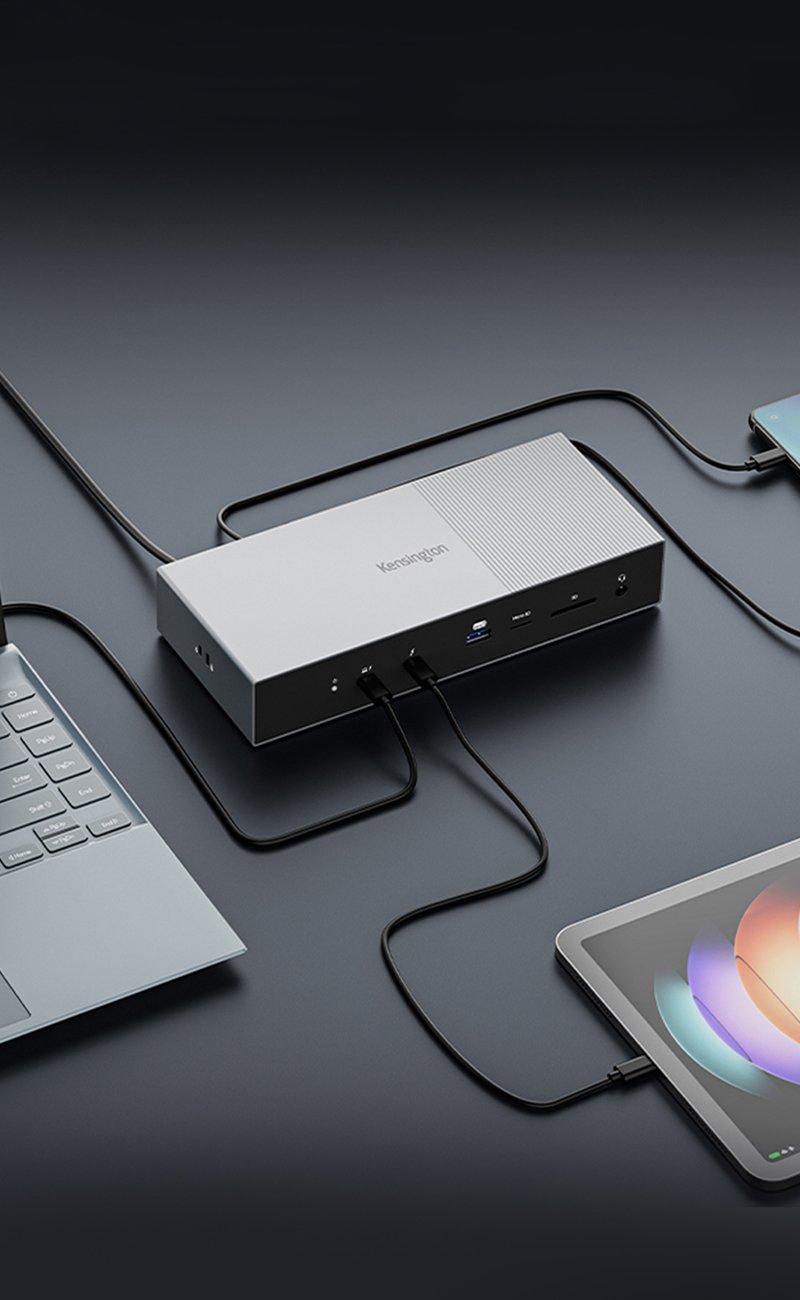
Kensington® SD5768T EQ Thunderbolt™ 4 Docking Station with Thunderbolt™ Share transfers up to 40Gbps of data, video, and audio, and serves as a daisy chain support for SSDs, monitors, and other Thunderbolt™ devices.
It allows for Thunderbolt™ Share to connect two Thunderbolt™-enabled devices like laptops, PCs, or tablets and coordinate peripherals and files. Additionally, it supports single 8K @ 60Hz or dual 4K @ 60Hz, up to 100W power delivery, 13 built-in ports, and more!
With Kensington hardware, Thunderbolt™ Share becomes a seamless part of your workflow—whether you're collaborating, presenting, or switching between work and personal machines.
Compatibility
- Supported: Windows laptops and desktops with Thunderbolt™ 4 or 5
- Not supported: macOS or USB-C®-only systems
So, Who Benefits Most from Thunderbolt™ Share?
- Creative users handling large media files across multiple systems
- IT teams performing secure device management or system imaging
- Remote professionals who juggle work and personal systems
- Collaborative teams working across devices without cloud dependencies
FAQ About Thunderbolt™ Share
Can Thunderbolt™ Share be used with a docking station?
Yes. You can connect two Thunderbolt™-enabled devices to a Kensington dock that supports Thunderbolt™ Share and use it for both file transfer and shared peripherals.
Is Thunderbolt™ Share secure?
Yes. All data stays local and is encrypted during transfer.
Does Thunderbolt™ Share work on macOS?
No. It is currently only available for Windows systems with Thunderbolt™ 4 or 5 ports.
Do I need an internet connection to use Thunderbolt™ Share?
No. Thunderbolt™ Share works locally without needing a network, Wi-Fi, or cloud service.
What kind of cable do I need?
You need a certified Thunderbolt™ 4 or Thunderbolt™ 5 cable.
Connect and Expand With Thunderbolt™ Share
Thunderbolt™ Share introduces a new level of performance and flexibility for Windows professionals.
It simplifies how two devices can transfer files, share screens, and connect to peripherals—all without a network or cloud service.
Explore Kensington's Thunderbolt™-enabled docks to unlock new possibilities in high-speed collaboration and device management.